


PDF Document Scanner - PixScan
4.7110.00 Reviews
App Specs
- Version
- 4.2.6
- Updated On
- License
- Free
- Downloads
- 5,000,000+
- Developer
- Eco Mobile for Work
- Categories
- Productivity
- Platform
- Android
Screenshots
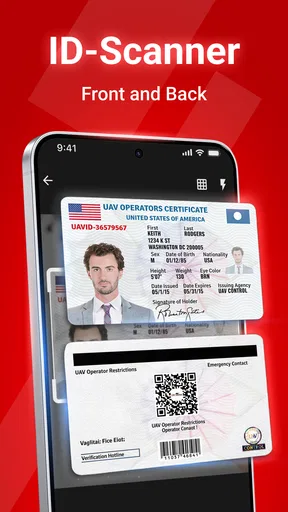
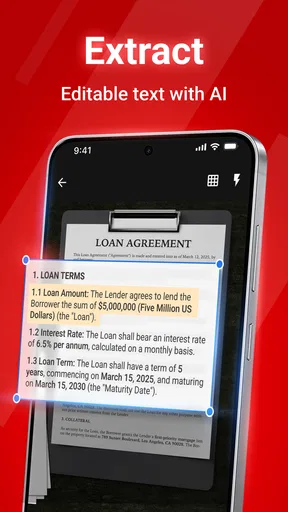
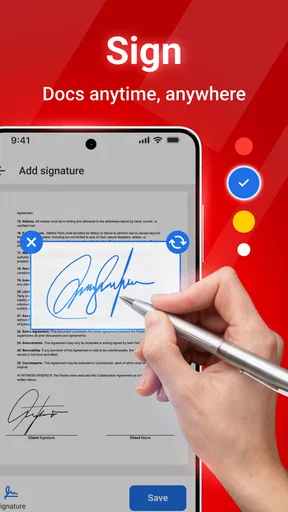
 Analysis by AppCompare
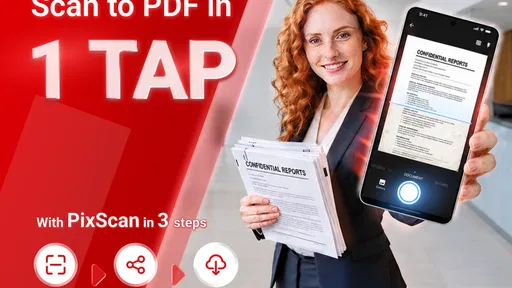
When I need to turn a paper document into something I can send or keep on my phone, the useful question is not simply whether a scanner app can take a picture. I want to know whether I can get from a loose page to a readable PDF without creating extra cleanup work. PDF Document Scanner - PixScan is built for that everyday office task: capturing paper with a phone and converting the image into a file I can use elsewhere.
A good fit for the page in front of you
I find this kind of app most useful when a full-size scanner would be overkill: a signed form at the kitchen table, a receipt I need to keep, or a printed page someone hands me after a meeting. The camera is already with me, and a scan can be made while the paper is still available. That convenience matters more than elaborate document-management features when the immediate goal is simply to preserve a clean copy.
A practical example is finishing a paper form just before leaving work. I would place it on a flat, contrasting surface, capture it in good light, check the edges, and review the result before sharing or filing it. The last check is worth the few seconds: a shadow, folded corner, or cut-off signature is much easier to fix while the original page is still in reach than after the paper has been handed back.
From camera capture to a usable file
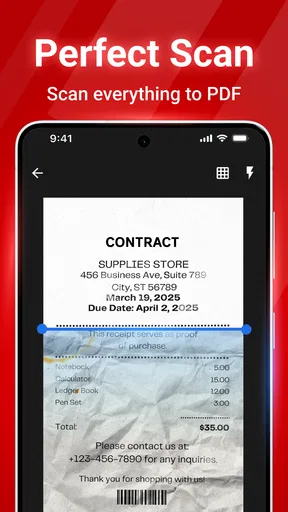
The workflow is straightforward in principle: point the phone at the page, let the app detect its outline, then adjust the crop or rotation if the framing needs help. I would not treat automatic edge detection as a substitute for checking the preview. A patterned desk, low contrast, or a page that is not lying flat can make the boundary less obvious, so a quick manual correction is a sensible part of the process rather than a sign that the app has failed.
After framing, the editing options described in the app’s workflow—cropping, rotating, and applying filters—are useful for different reasons. Cropping removes background that makes a page look untidy; rotation corrects a sideways capture; and a readability filter can help text stand out. I would compare the enhanced version with the original before relying on it, especially for fine print, faint handwriting, or a document where exact appearance matters. A stronger-looking scan is not automatically a more faithful one.
For a multi-page document, I would keep the pages together as one task and review their order before sending the result. That small habit prevents a recipient from having to guess which page comes next. It is also a helpful way to spot a page that was captured at a different angle or with noticeably different lighting. PixScan’s value here is the phone-based capture and PDF-oriented workflow; it is not a replacement for carefully checking the finished document.
Handing the scan off
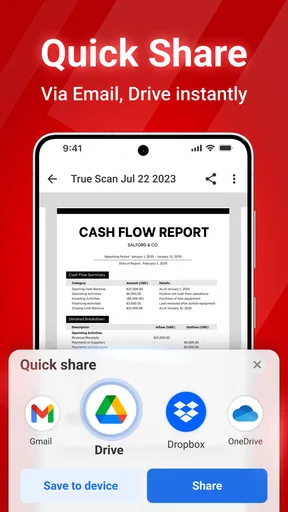
Once the pages look right, the next decision is where the file needs to go. The app is presented as supporting cloud storage such as Google Drive and Dropbox, which can suit a workflow where I scan on my phone but organize documents elsewhere. I would still check the destination and the file name before sharing. A clearly named file is easier to find later than a series of indistinguishable scans, particularly when several receipts or forms arrive in the same week.
Worth Reading Before You Choose

EA SPORTS FC Mobile 26 Is a Bigger Football Game, but It Takes Time

Flipboard Shows What News Apps Must Do Beyond the Feed

Switching to Android Auto Means Rethinking Your Driving Routine

Google Calendar Makes a Crowded Week Easier to Manage

Ludo King Makes the Most of the Minutes Between Plans

Baby Panda World Brings Quick Play to Modern Phones, but Its Game Library Feels Busy
A signature can also be added in the app, which is convenient when a document needs to be completed and returned without printing it again. I would use that for routine paperwork, but I would first confirm that the receiving organization accepts a digitally added signature. Some processes require a specific signing method or an original paper copy, and a scanner app cannot decide that requirement for you.
Privacy deserves the same practical check. Password protection is described as an option for sensitive scans, but I would not assume that protecting a file removes every risk involved in sharing it. Choose the recipient carefully, avoid sending private paperwork to a group conversation, and make sure the saved copy is stored where you can retrieve it without exposing it unnecessarily.
Who should choose it—and who may not need it
PixScan makes the most sense for people who scan occasional office paperwork, receipts, forms, or contracts and want to work from a phone. Eco Mobile for Work develops it as a productivity app. It is free to install, rated for Everyone, and its current version is 4.1.4. The app has an average rating of 4.3 from around 37,000 ratings and more than five million installs, which gives a prospective user a broad sense of its reach without telling them whether its particular workflow will suit them.
There are in-app purchases, with items ranging from $1.99 to $49.99, so I would check what is included before committing to anything beyond the free starting point. If I only need an occasional page, I would begin with the free experience and decide from actual use whether any paid option is worthwhile. Someone who needs to scan documents every day should pay closer attention to the features and limits available in the version they plan to use, rather than assuming that every tool they want is included at no cost.
Compared with using a phone’s regular camera, a dedicated scanning workflow is more convenient when I want a cropped, corrected document rather than a casual photo. Compared with a desktop scanner, it is quicker to use away from a desk, but it depends on careful camera positioning and lighting. If exact color, consistent output across a large batch, or a formal office scanning process is important, a physical scanner or an established workplace system may be the better choice. If I need searchable text or extensive filing and retrieval tools, I would check those specific capabilities before making PixScan my main archive.
One useful habit is to scan on a plain surface and avoid casting a shadow with the phone itself. Another is to check every page at readable size before sharing, rather than judging only the thumbnail. For receipts, I would make sure the date and total remain legible after any filter is applied. Those simple checks do more for the final result than rushing through capture and hoping automatic correction has solved everything.
Getting Started with PDF Document Scanner - PixScan
First things first, downloading and setting up the PDF Document Scanner - PixScan is a breeze. Available for both Android and iOS, I had it installed in no time. The interface? Super user-friendly! From the get-go, it guides you through its features with a neat little tutorial. Even if you’re not tech-savvy, you’ll feel right at home.
Features That Stand Out
Now, let’s talk about the features. This app doesn’t just stop at scanning. Oh no, it’s packed with tools that make document management a piece of cake.
- High-Resolution Scanning: The app uses your phone’s camera to capture documents in stunning clarity. Whether it’s a receipt or a multi-page contract, the details are crystal clear.
- Auto-Detection: One of my favorite features is the auto-detection of edges. You just point your camera, and the app magically figures out where the document edges are.
- Edit and Enhance: Once scanned, you can tweak the documents with filters to enhance readability. There's even an option to crop and rotate if needed.
Why You’ll Love Using It
Using PixScan feels like having a mini-office in your pocket. Need to send a signed document? No problem! You can add your signature directly within the app. Plus, it integrates seamlessly with cloud storage services like Google Drive and Dropbox, making it super easy to save and share files.
And if you’re worried about privacy, the app ensures your documents are secured. With password protection, you can keep your sensitive scans safe from prying eyes.
Everyday Use and Performance
After using it for a couple of weeks, I’ve found it incredibly reliable. Whether I’m scanning single pages or entire books, the app doesn’t miss a beat. The processing speed is impressive, too. You won’t find yourself waiting around for ages while it processes your documents.
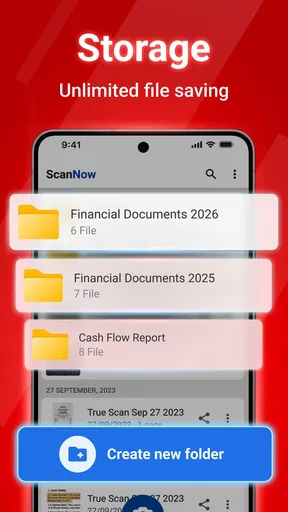
But what about the storage space, you ask? The app optimizes file sizes without compromising on quality, so you won’t have to worry about it hogging up all your phone’s memory.
What to check before making it your regular scanner
My main caveat is that the result still begins with a camera image. Good light and a steady hand make a real difference, and glossy paper can reflect glare even when the page looks clear to the eye. For forms with tiny text, I would zoom in on the saved scan before sending it. This is a small but important distinction: a phone scan can be perfectly adequate for routine paperwork without matching the consistency of a dedicated office scanner.
The app is free, but that does not mean every user should assume the entire workflow will remain free as their needs grow. In-app purchases are available, so I would treat the first scan as a chance to test the basics, then decide whether a paid option addresses a real need. I would not buy anything just because it appears during setup; first identify the feature or limit that is actually affecting your work.
Another sensible question is whether the document must be searchable. A PDF made from a camera capture may be useful to read and share, but I would not assume that its words can be searched or copied unless the app explicitly offers text recognition. If I routinely need to locate a clause by typing a phrase, I would choose a scanner workflow with clearly stated text-recognition support or keep a separate searchable copy.
Where the workflow can slow down
For one or two pages, a phone is usually the easier tool to reach. For a thick stack, repeated captures and page checks can become tedious, while a feeder-equipped office scanner may handle the batch more efficiently. Books are another special case: pages curve near the binding, so automatic edge detection may not produce a perfectly flat-looking result. I would use PixScan for a few reference pages, but not expect a phone camera to flatten a whole volume like a specialized book-scanning setup.
Sharing is also a handoff, not just a button press. Before sending a contract or form, I would confirm that the recipient can open the PDF and that the pages appear in the right order. If a cloud folder is involved, I would check that I am saving to the intended account or location. Those checks add a moment to the process, but they help avoid the more frustrating problem of having to repeat a scan because the file went to the wrong place or arrived incomplete.
PixScan runs on Android from version 5.0, making it an option for some older devices as well as newer phones. Even so, the camera and screen on the device will shape the experience. A phone with a poor camera or a cracked lens may produce a result that no crop tool can fully rescue, while a small screen makes detailed review less comfortable. I would judge the app using the device I plan to scan with, not only by how simple the interface feels.
My verdict after weighing the trade-offs
For quick, occasional document capture, I would recommend giving PixScan a try. Its appeal is practical: it brings capture, basic correction, signing, and file handoff into a phone-based routine instead of making me wait until I am near a scanner. The strongest results come when I slow down enough to prepare the page, check the crop, and inspect the finished PDF before sending it.
I would skip it as my only document system if I needed high-volume batch scanning, reliable searchable archives, or a process governed by strict signature and retention rules. Those jobs call for tools designed around those requirements, not simply a convenient camera workflow. For everyday receipts, signed forms, and pages that need to travel from paper to a PDF without much fuss, though, this is a useful productivity app to keep within reach.
Final Thoughts
In a nutshell, if you’re constantly on the move and need a handy tool for document management, the PDF Document Scanner - PixScan is worth checking out. It’s efficient, easy to use, and a real lifesaver when you’re in a pinch. So, go ahead, give it a whirl—you might just find it becomes one of your most-used apps!
Pros
- User-friendly interface for easy navigation.
- High-quality scanning with adjustable settings.
- Fast processing for quick document saving.
- Supports multiple file formats for export.
- Includes OCR feature for text recognition.
Cons
- Limited free version features available.
- Occasional ads can disrupt workflow.
- Requires in-app purchases for full access.
- May struggle with low-light conditions.
- Some features need internet connection.
FAQs for PDF Document Scanner - PixScan
What features does PDF Document Scanner - PixScan offer?
PDF Document Scanner - PixScan provides a comprehensive suite of features for document scanning. Users can efficiently scan documents, receipts, or notes and convert them into high-quality PDFs. The app supports OCR for text recognition, allowing users to edit and search text within scanned documents. Additionally, PixScan offers cloud integration, enabling easy storage and sharing.
Is PDF Document Scanner - PixScan available for both Android and iOS?
Yes, PDF Document Scanner - PixScan is available on both Android and iOS platforms. Users can download the app from the Google Play Store for Android devices and the App Store for iOS devices. This cross-platform availability ensures that users can access their scanned documents on any device, enhancing convenience and accessibility.
How user-friendly is PDF Document Scanner - PixScan?
PDF Document Scanner - PixScan is designed with user-friendliness in mind. The intuitive interface allows users to quickly scan, organize, and share documents without any hassle. The app also includes easy-to-follow tutorials and prompts, making it suitable even for those who are not tech-savvy. Users can navigate through the app with minimal effort, ensuring a smooth experience.
Does PDF Document Scanner - PixScan offer cloud storage options?
Yes, PDF Document Scanner - PixScan integrates seamlessly with popular cloud storage services such as Google Drive, Dropbox, and OneDrive. This feature allows users to automatically upload and back up their scanned documents to the cloud, ensuring that files are safe, secure, and accessible from anywhere. Cloud integration also facilitates easy document sharing.
Are there any in-app purchases or subscriptions required for PDF Document Scanner - PixScan?
While PDF Document Scanner - PixScan offers a free version with essential features, there are in-app purchases available for users who wish to access premium features. Subscriptions unlock advanced functionalities such as unlimited scanning, additional editing tools, and enhanced cloud storage options. Users can choose a plan that best fits their needs and budget.


